
Step 1: open your kobo so it’s on and you can see the home screen.

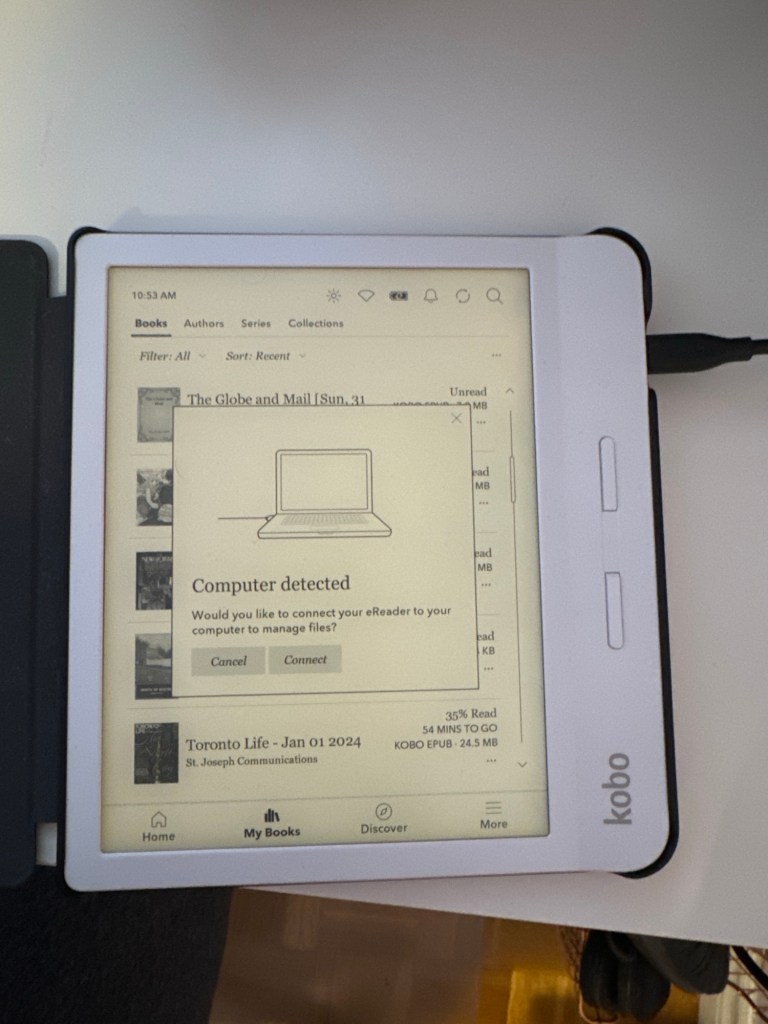
Step 2: plug a USB cable into the kobo and the computer. It should pop up a choice on the kobo. Tap “connect.”
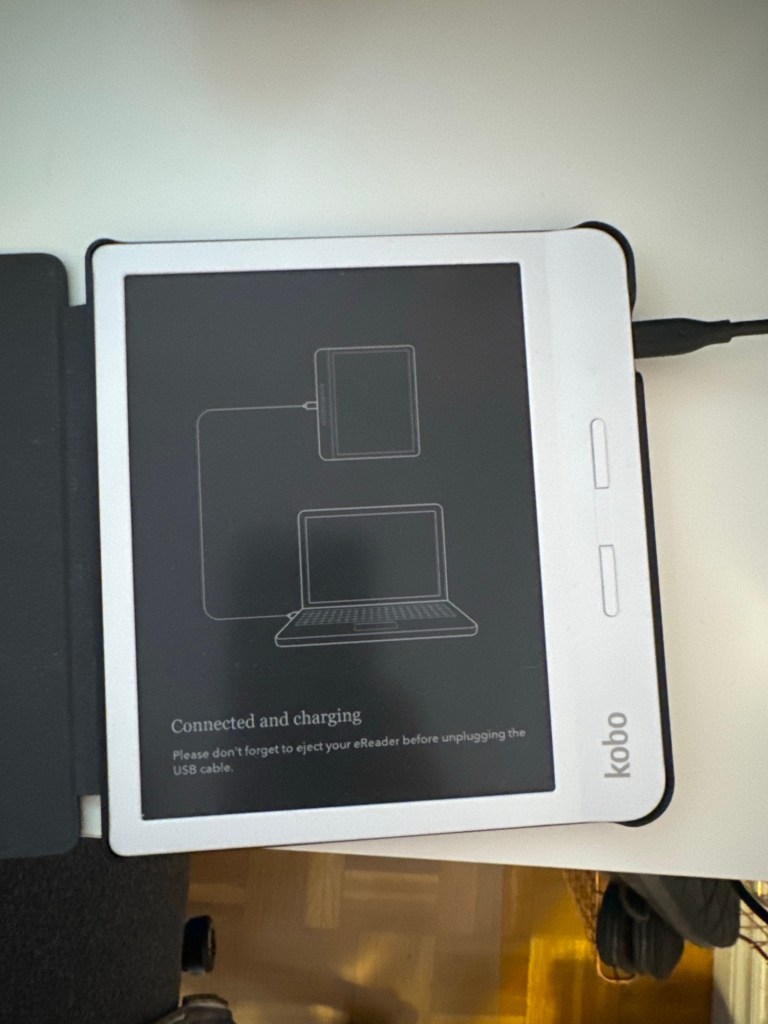
It should now look like this:
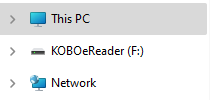
Step 3: On the PC, open file explorer. On the left sidebar, you should see at least these options. If you see “KOBOeReader” click on it. If not, click on “This PC” and you might see it there. If not, it might not be connecting properly.
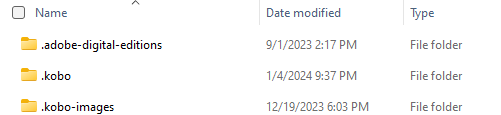
Step 4: After clicking on the Kobo, you should be able to paste any ebooks there. You don’t need to place them in a folder, but you can if you want. Just make sure you don’t place them inside these folders, as those are the software folders and shouldn’t be added to.
Once you’ve added the file, it should look something like this (the icon might be different):

Once you can see the file is in the kobo, you can disconnect it. Go down to the task manager on the bottom right of your pc. You should see a little icon that looks like a USB key.
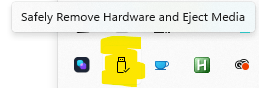
Right-click on it and then click “Eject eReader”
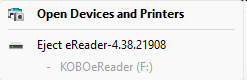
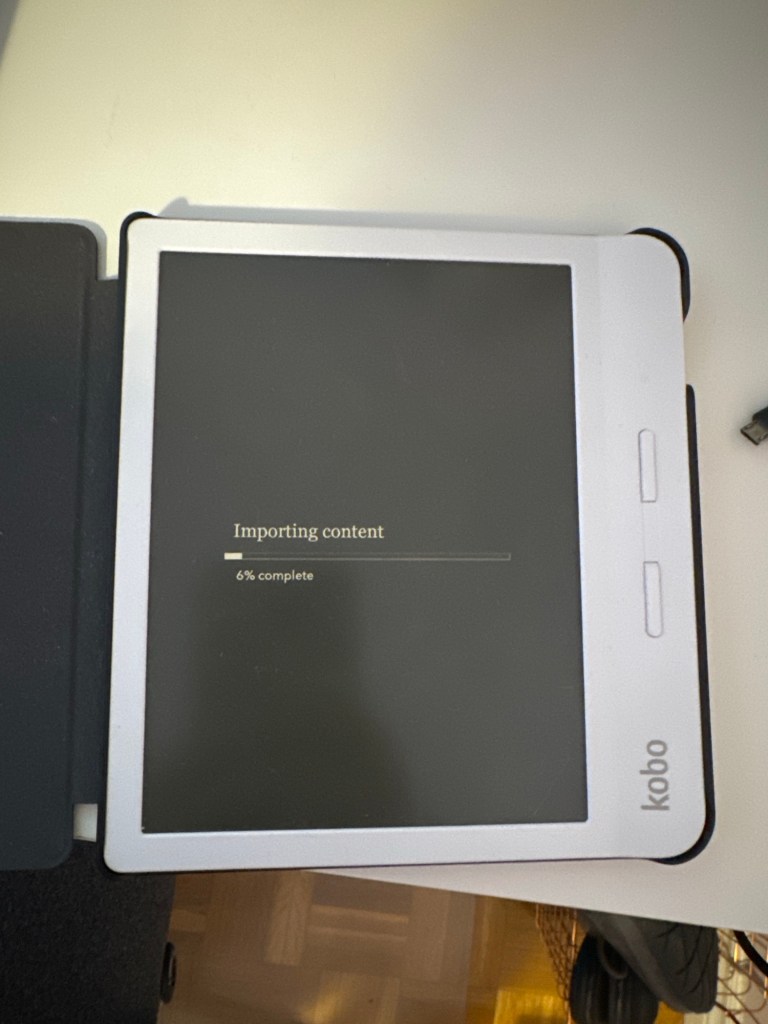
Once you’ve done that, the Kobo should spend a second “importing content”. Once that’s done, you should be able to see and read any books you added from your computer.

Leave a comment