
The Final Boss of Emulation Controllers
When it comes to emulating games on a phone, the DS feels like the final boss of controllers. There are just as many buttons as a Super Nintendo, and an entire second touch screen. You have to make creative decisions and sacrifices, knowing that not everything will work exactly as you’d like.
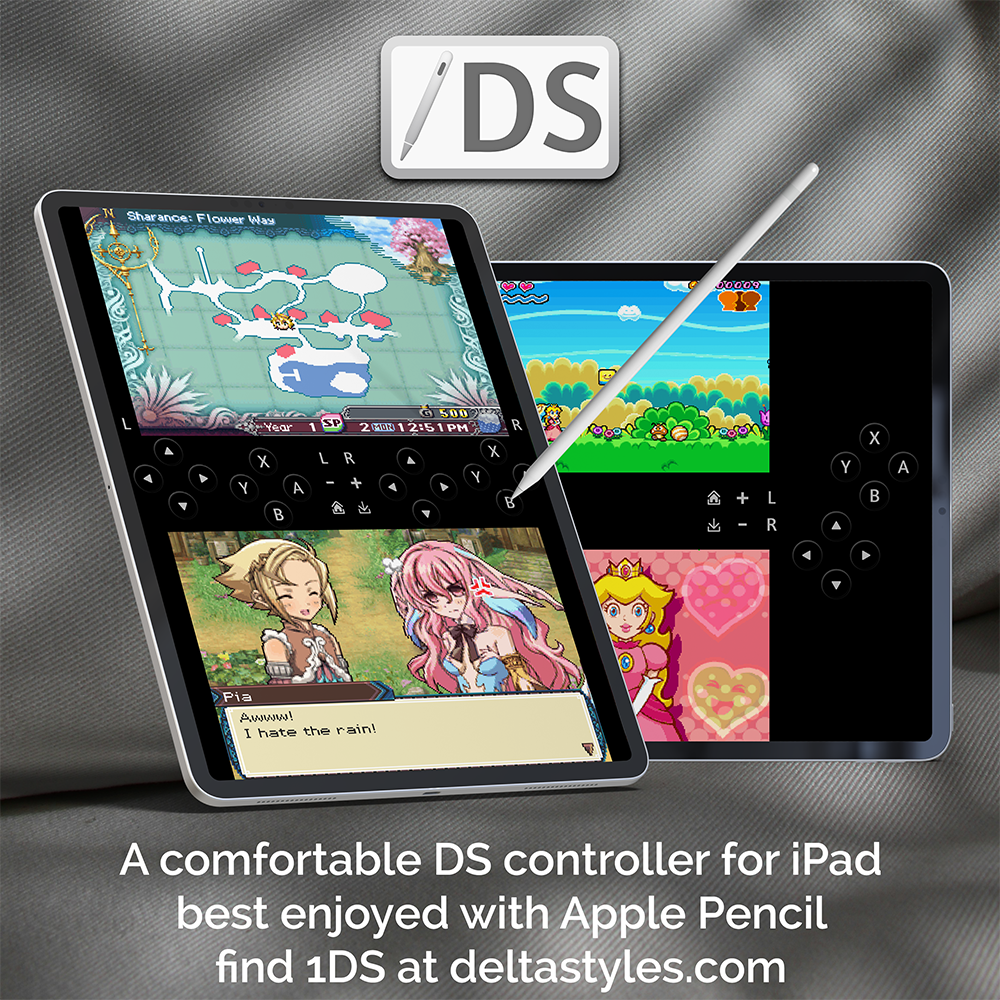
But that challenge is also what drew me to it. I love DS games, but I don’t play them nearly enough. The recent release of Delta for iPad really sparked my interest. The iPad, with its larger screen, can offers near one-to-one recreation of the DS. Various skins have managed to do just that, but these controllers assume you’re holding the iPad with both hands. This can make using the touch screen cumbersome, and even the lightest iPads are heavier than the DS. So, how do you play DS games on an iPad comfortably?
I eventually settled on the idea of placing the iPad on a table and playing with the Apple Pencil. The Pencil is ideal for slower games with more precise inputs, like RPGs, simulation games, and management titles—games where you’re just pressing one button over and over. The stylus offers a precise, comfortable experience for these kinds of slower-paced games. The DS had a stylus; it makes sense to use Apple Pencil to emulate that experience.
Experimenting with Control Layouts
As I experimented with different layouts, I realized that the traditional placement of buttons on the left and right sides didn’t work well for quick access on the iPad. I wasn’t particularly tied to a traditional layout (my other controllers certainly aren’t), so I started experimenting by swapping the directional pad and buttons—placing the D-pad on the right and the regular buttons on the left.

My first approach was inspired by the one-handed controllers I had made for the Game Boy and Super Nintendo, which worked fine but left a lot of empty space on the screen. With so much screen real estate available on the iPad, I decided to build something similar but on both sides of the screen, so your hand doesn’t have to move much while playing.
Embracing Split-Screen Mode
Another advantage of the iPad is the ability to play in split-screen mode, where you can have two apps open simultaneously. You can have the game on one side, another app on the other, and the controller at the bottom. This setup led me to ensure that the controls were accessible on both sides of the screen, so both left-handed and right-handed players could comfortably use the Apple Pencil.
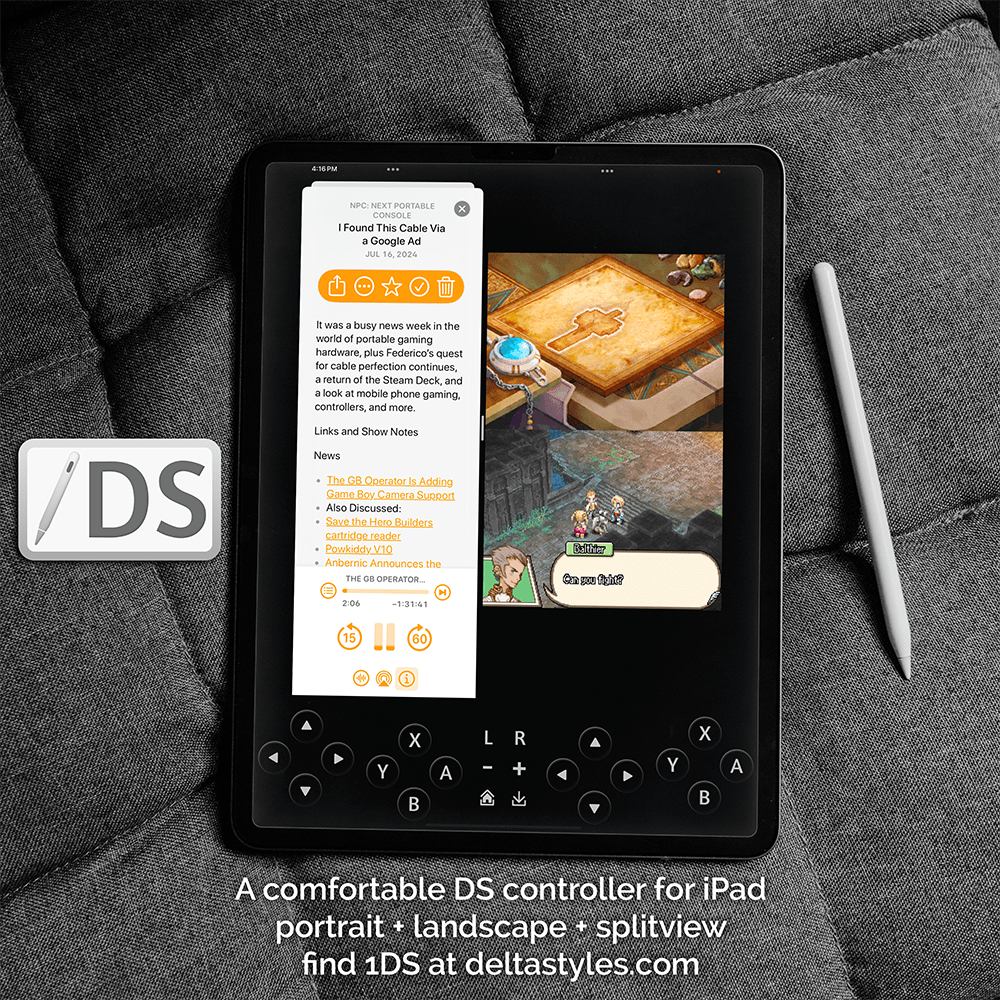
In portrait mode, the controls remain identical to split-screen, but I added extra L and R buttons on both sides for added comfort, especially if you do happen to be playing with two thumbs instead of the stylus.
The Unexpected Phone Version
Originally, I wasn’t planning on making a version of the 1DS for phones. But when I worked on getting the controls to fit within split view on the iPad, it inspired me to try it.
On the iPad, size isn’t an issue—you can make the DS screens large enough to comfortably play, whether in portrait or landscape mode. The iPhone is a different story. Since Apple still doesn’t allow stylus support on iPhones, you have to use your digits, and our smallest pinky fingers are larger than a DS stylus. To make it work, I made the bottom touchscreen as large as possible, edge-to-edge, ensuring it’s even a little bigger than the original DS touchscreen. It’s a bit bigger than the DS screen on smaller iPhones, and scales up with each larger model.

DS screens had a gap between them, and it feels right to use the gap for controls. My thumbs comfortably end up there (I wish I could push the iPhone keyboard higher, honestly).
I’m happy with how the phone version turned out. The top screen is also edge-to-edge, and while there’s not much space left for the controls, they’re still big enough to handle most games—especially slower-paced ones.
Why is it called 1DS?
In a way, emulation DS games in 2024 often means playing games on one screen instead of two. It’s a compromise, but a fun design challenge. I also wanted to hint at how so many of these games are designed to be played: with a stylus. That’s why the icon looks like this:

I’m also a big fan of Rusty’s Real Deal Baseball, for those who know.
A Graphic Design Challenge
The DS is a fascinating graphic design challenge when it comes to emulating it on a different device. This version of the 1DS controller is the best attempt I’ve come up with so far, but I have more ideas for future improvements.
In the meantime, I hope this version provides a satisfying experience for anyone looking to revisit their favorite DS games on the iPad and iPhone.
Download 1DS for Delta here: 1DS – A comfortable DS controller for iPhone and iPad

Leave a comment