
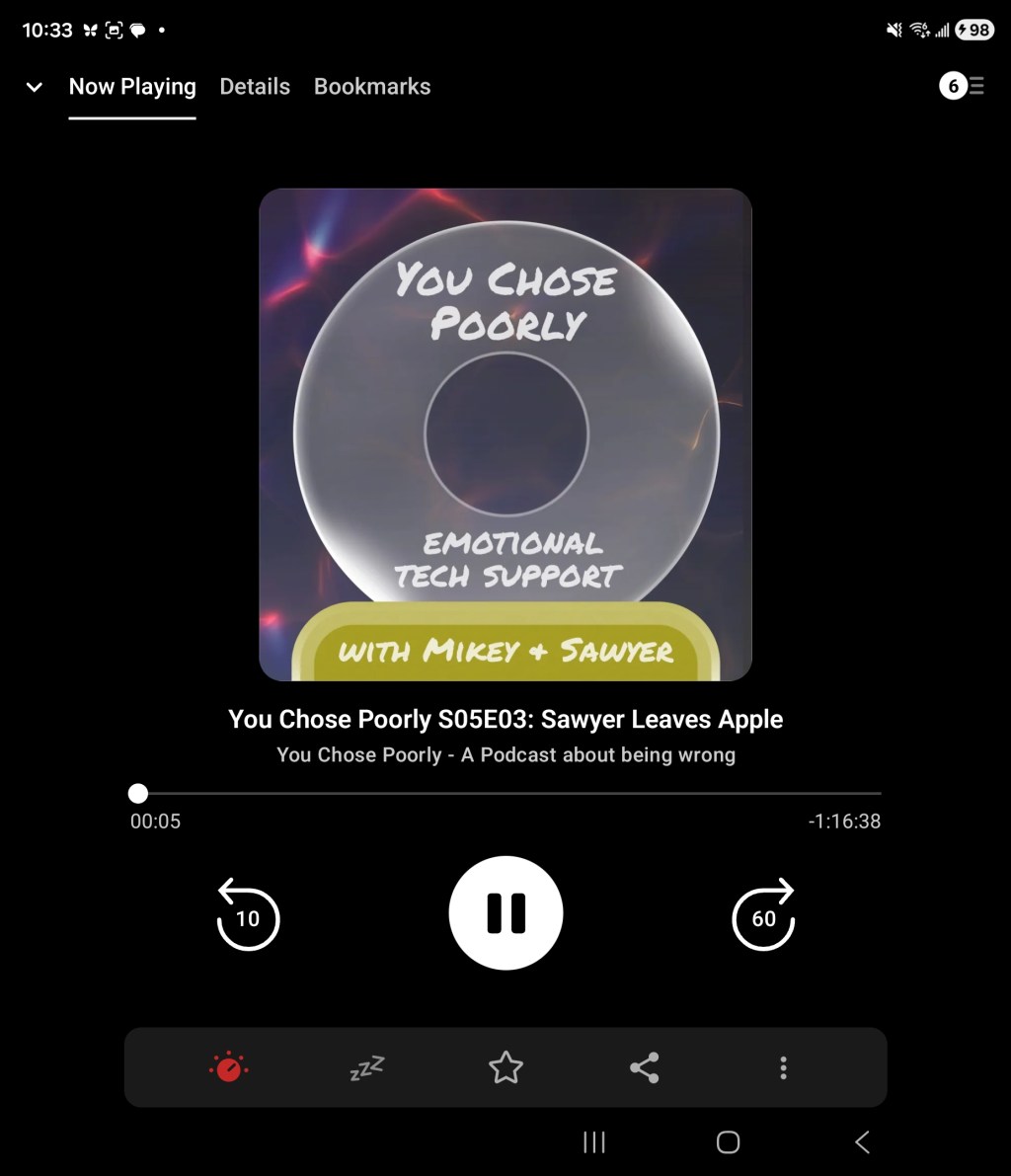
I have tried a lot of podcasting apps over the years (okay, it’s like 5 apps, but isn’t that a lot for something like this?). Pocket Casts is my favourite. It has an amazing blend of powerful features and really fast ease of use that makes it a no-brainer for me and for anybody who I would recommend a podcast app. In this post I’m just going to do a quick run through of how it works and how to quickly access some of the cooler things.
Widget
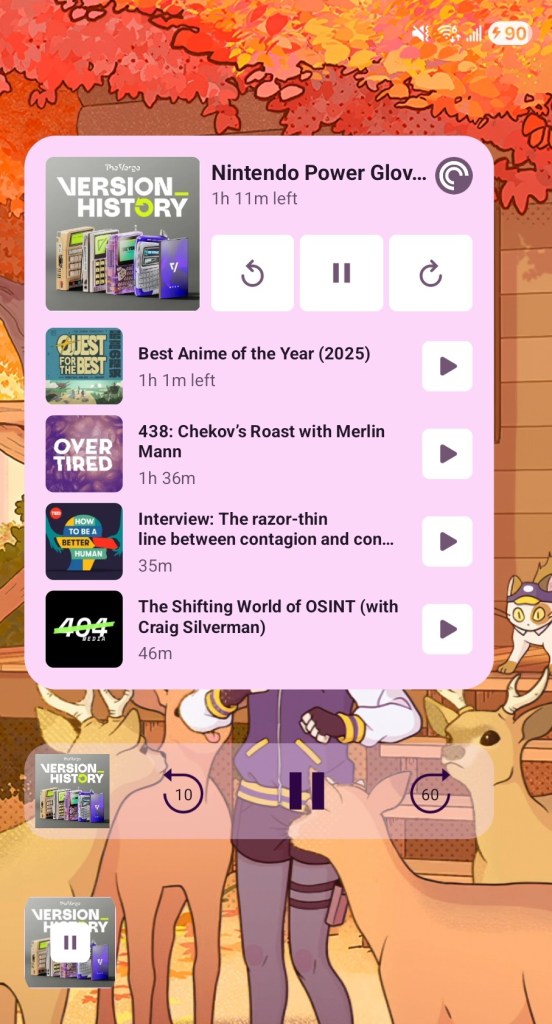
Once you’ve got yourself set up, it’s likely you won’t even need to open the app very often. Pocketcasts has great widgets. There’s a big “up next” box with large episode art, a single-line “play/pause/fast-forward” one, and a single block “play/pause” one with tiny episode art.
Now, onto the app itself.
Podcasts
Open the app, and the first tab will be “Podcasts.” This is your library, for shows you’ve followed. There likely won’t be this many shows at first, but podcasting is an addictive medium and the list will grow.
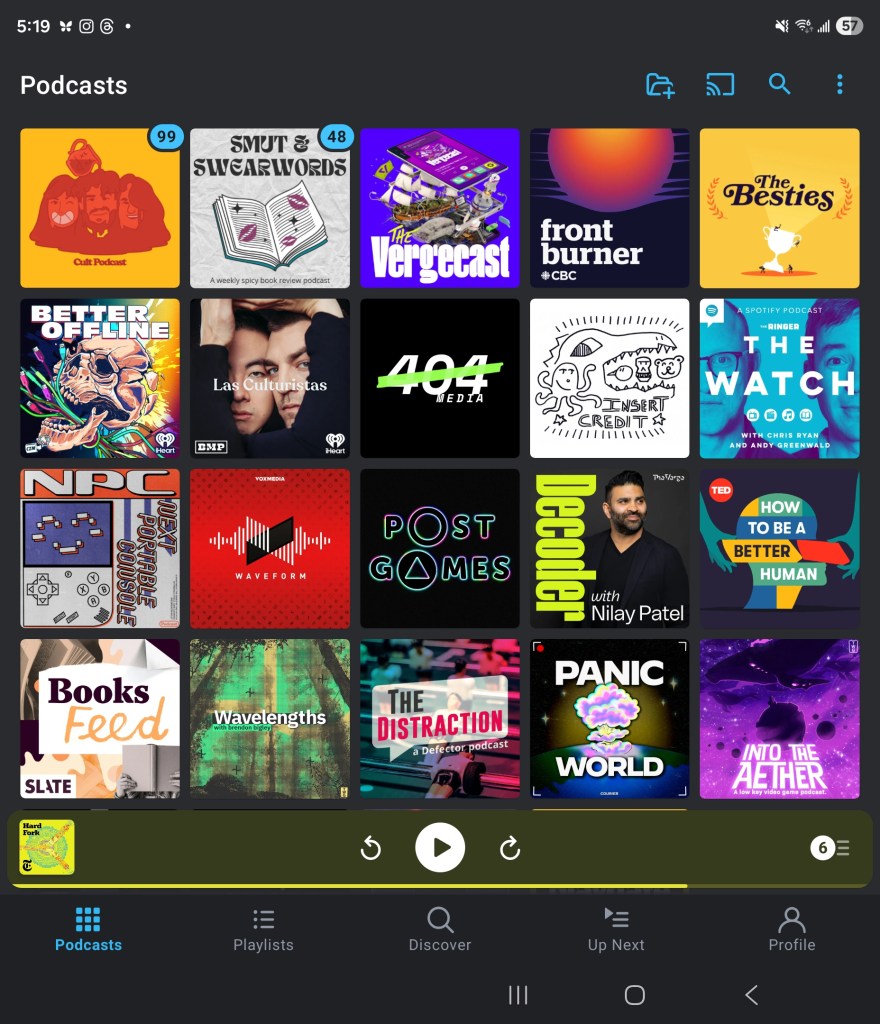
Things to remember here: that yellow-tinted bar is the “Now Playing” area. Tapping play will unpause whatever podcast you had playing. Tapping the bar will bring up the “Now Playing” area. This area is useful for starting a new show or managing your subs.
Pocketcasts has a number of features that help you almost never be here.
Now Playing
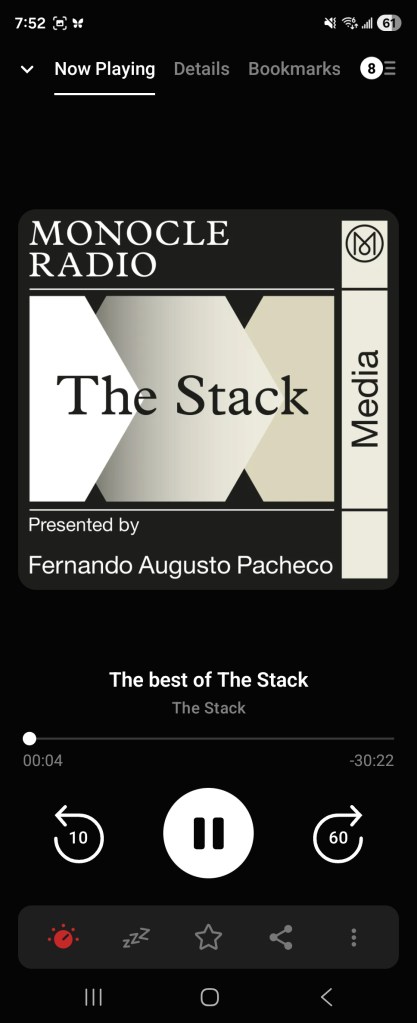
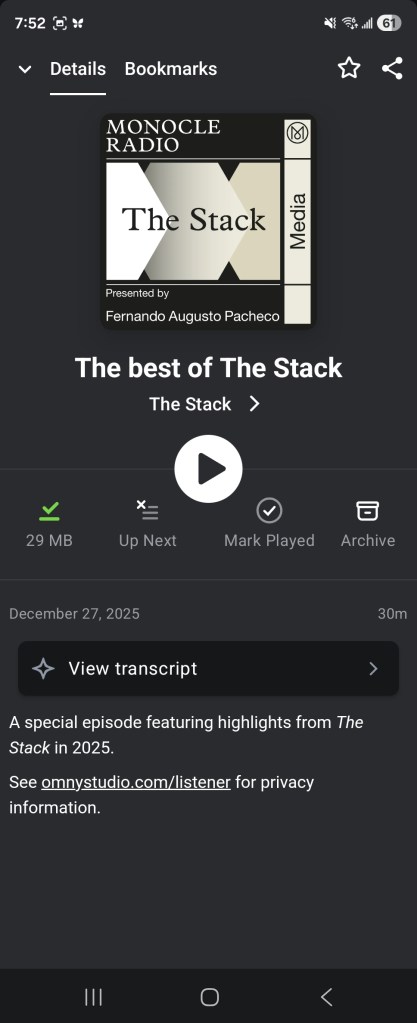
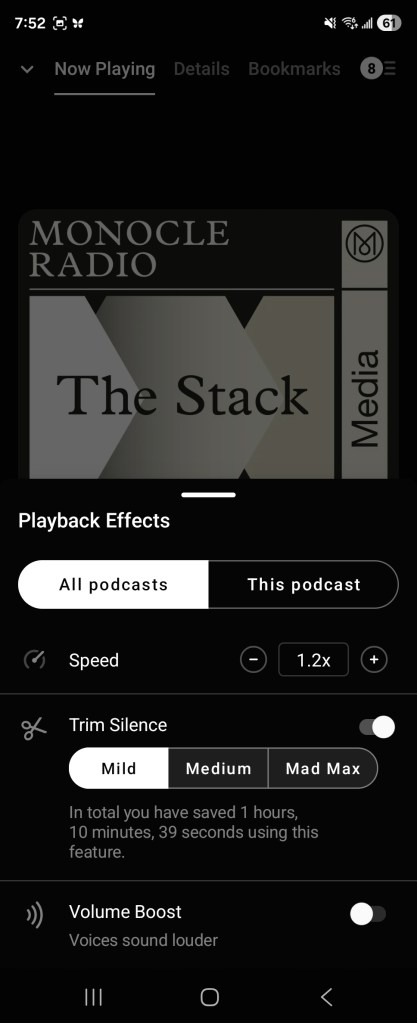
Now playing looks a lot like Spotify. The difference here is in the details. At the top, you can swipe to “details” to see descriptions and transcripts for the episode. You can also create your own bookmarks for specific times in a show.
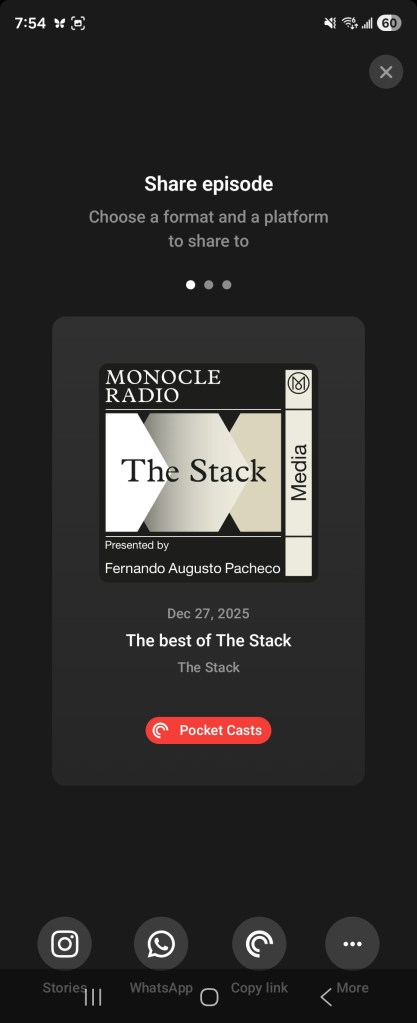
At the bottom are options for speed settings, and whether you’d like silence trimmed and voices boosted. There’s a sleep function, a “star” for faving eps, and a share function that even includes a clip editor.
Playlists
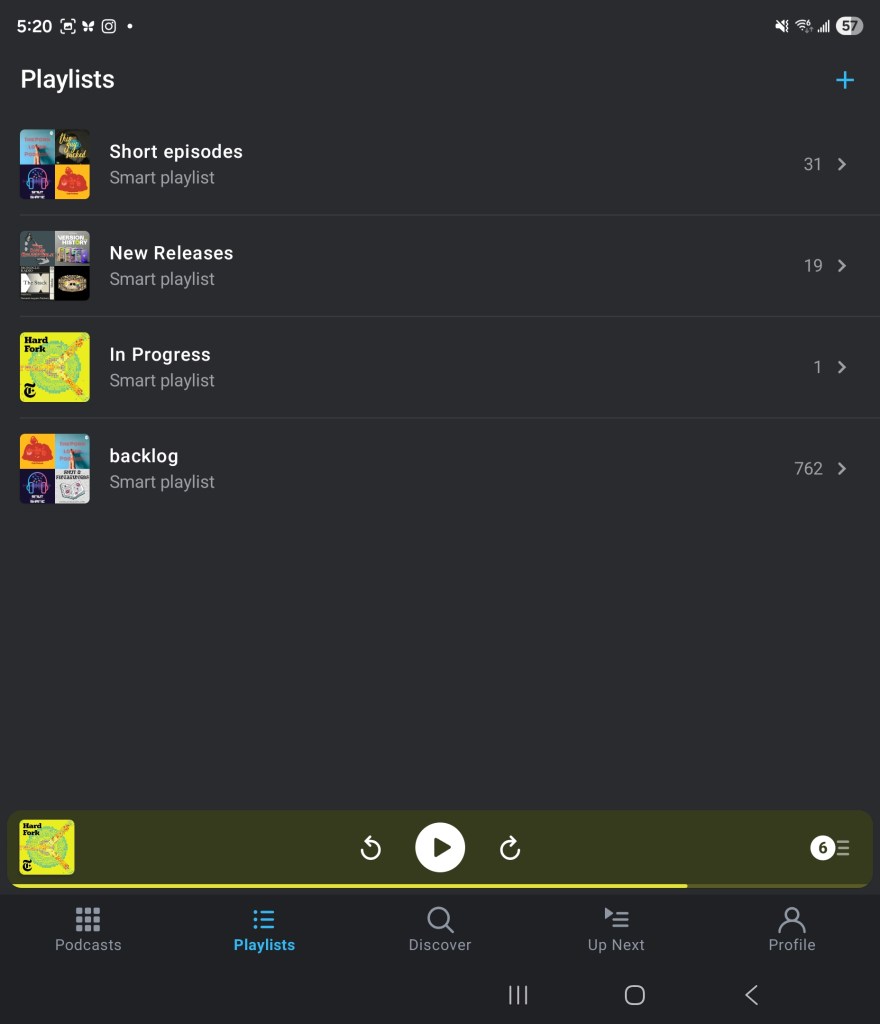
Playlists are the first great feature of Pocketcasts. They can be manual (boo) or smart (yay). Tapping that “plus” button on the top right will bring up the playlist maker.
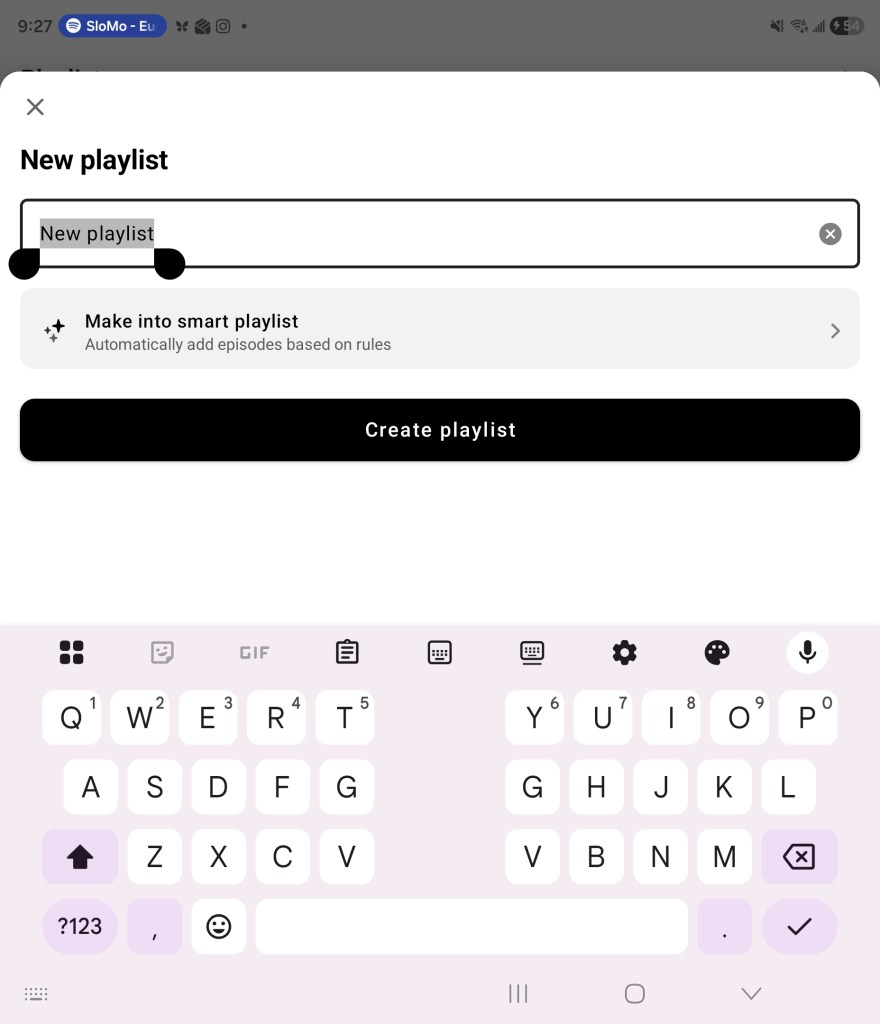
Tap “Make into Smart playlist.”
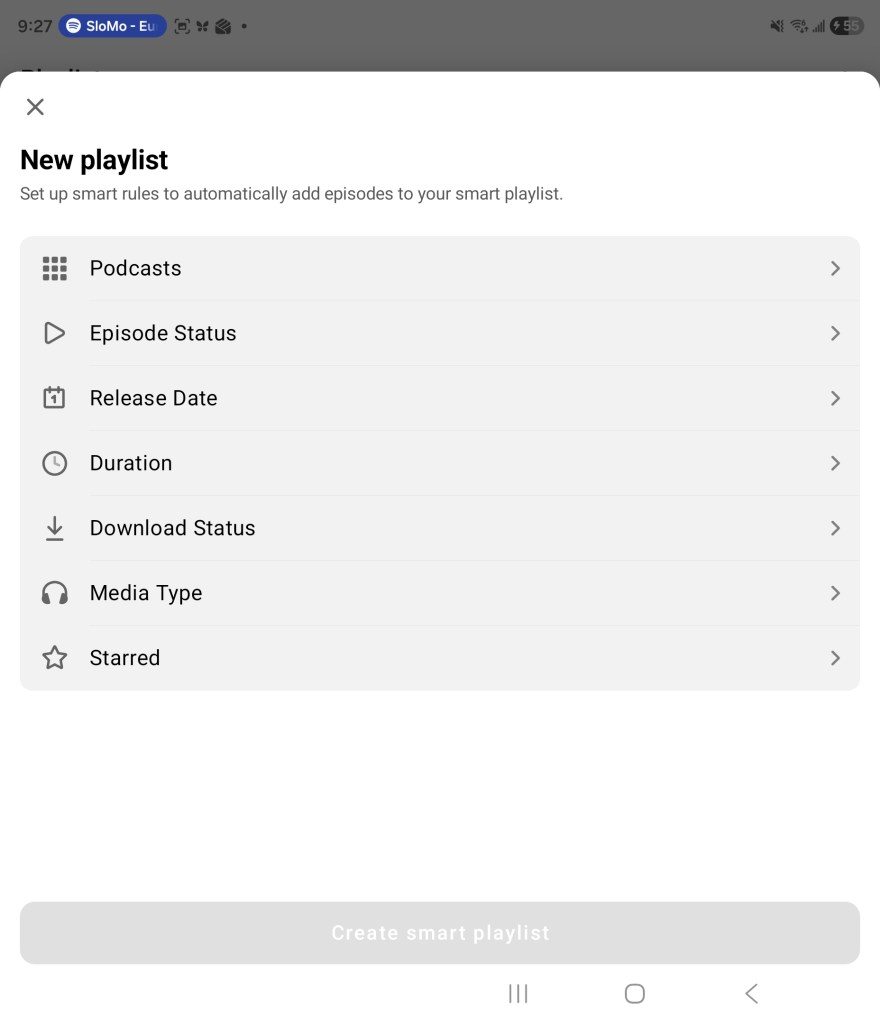
Each one of these helps dial a playlist into exactly what you want. Tap into “Podcasts” and hit “Cult Show,” for example. Tap into “episode status” and and select “unplayed” only. Sort the playlist from oldest to newest. Boom. You’ve got a playlist that will begin at the oldest episode and keep playing until you’ve finished the show, and you’ll never have to do anything else.
Discover
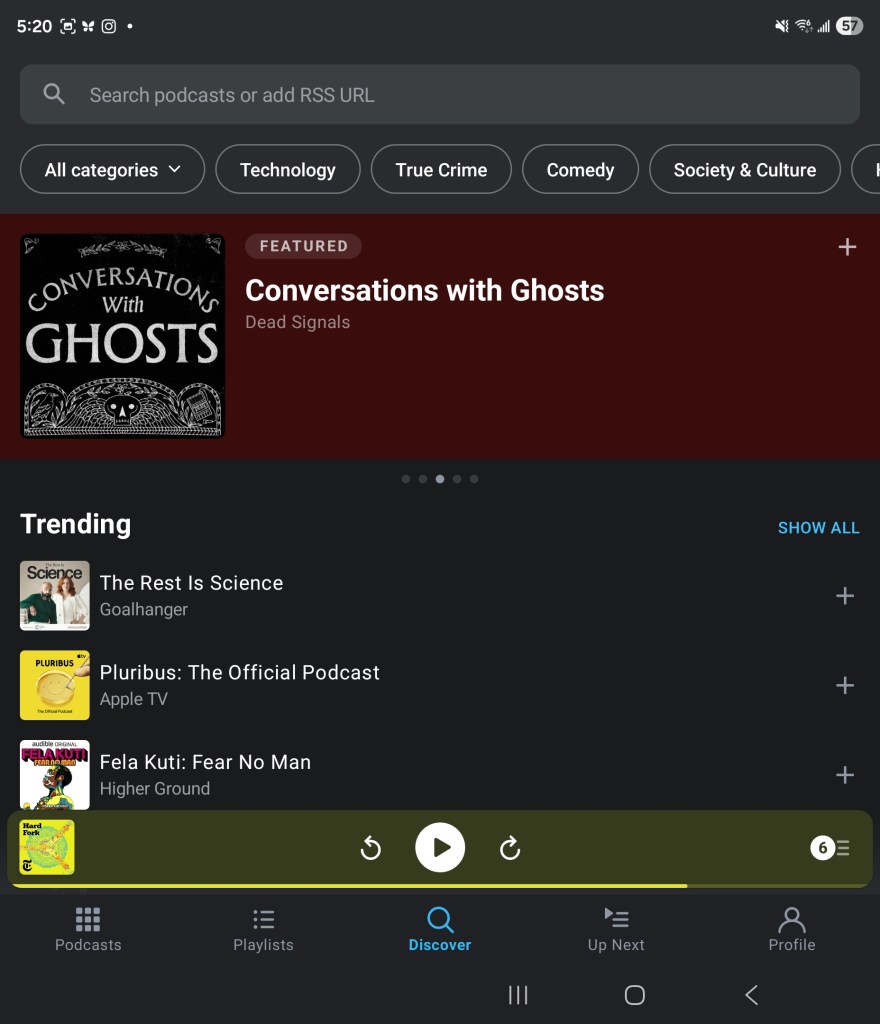
The discover tab is how you find more shows. Every podcast app has a search feature, but Pocketcasts has a nice editorial selection here that I generally find to be in good taste. You can also listen to any show without necessarily “following” it, just like Spotify.
Up Next

Once you get up and running, Up Next becomes your best friend. It’s the que. If you’ve set up a playlist, up next will be filled with what’s left in it. If you’re looking around at other shows, swipe left on any episode and tap the little “up next” icon (it’s a list with a plus), and that episode will move to the top of the list.
Profile
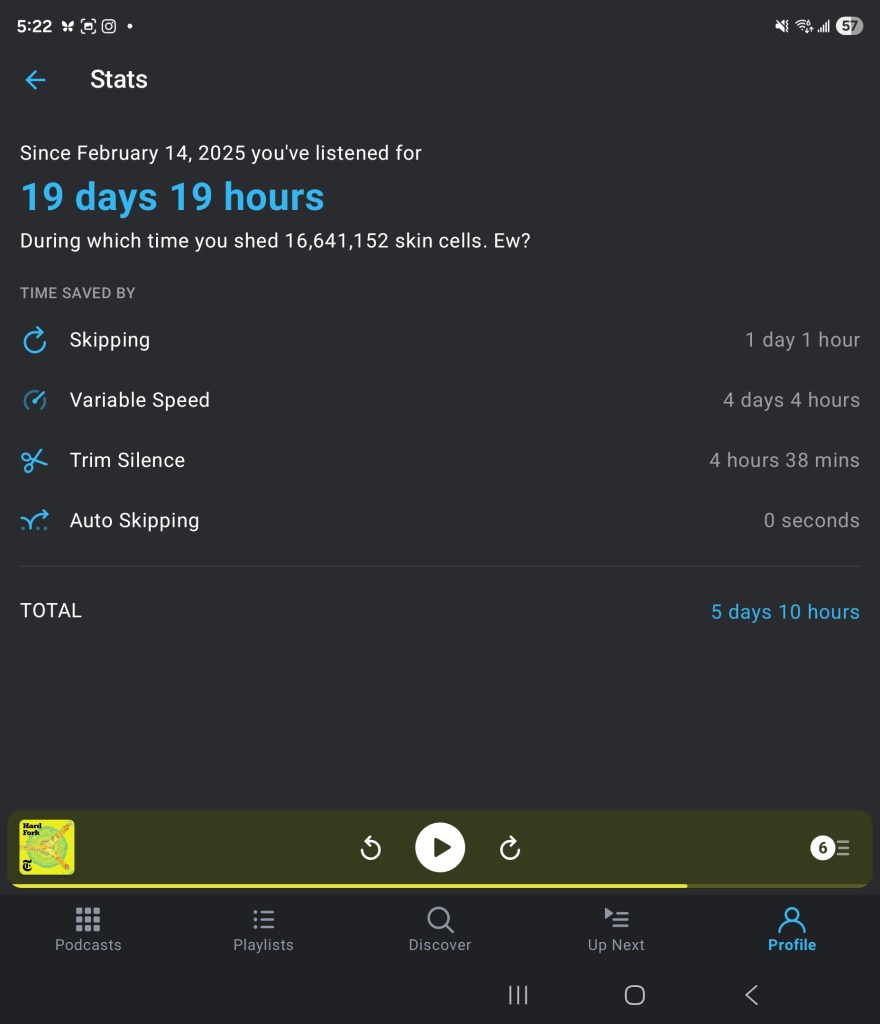
You’ll almost never go in here, but it contains things like settings, listening history, and stats. You can also theme the app as you like. I leave it on “use android light/dark mode” (that’s why some screenshots here are light, and some are dark).
Things to remember here: settings is where you change the “fast forward” and “rewind” times to your preferred skip amount. I generally push fast forward to 60 seconds. This is such a great little detail feature. Spotify’s fast forward is locked to 15 seconds, for comparison.
Advanced – Auto Features
To me, there are two types of podcasts: ones you want to enjoy “every” episode, and ones where you only care about the “latest” episode. Pocketcasts makes it easy to enjoy both at the same time using two features: “Auto Add to Up Next” and “Auto Archive”. This is really where Pocketcasts separates itself from other apps.
You can set up how these work in settings, but since Pocketcasts doesn’t know what is an “every” or “latest” kind of show, I set it up on a per-episode basis.
For a show where I want to listen to every episode, I make a playlist just like how I described in the playlist section. That’s currently my “backlog” list.
For shows where I only care to listen to the latest episode—like a news podcast—I set “Add to Up Next” to yes, set the “Position” to “play next”. That means the newest episode will always be top of my que. Then, I set “Auto archive” to “Episode limit – 1,” which means it will always be replaced by the next episode.

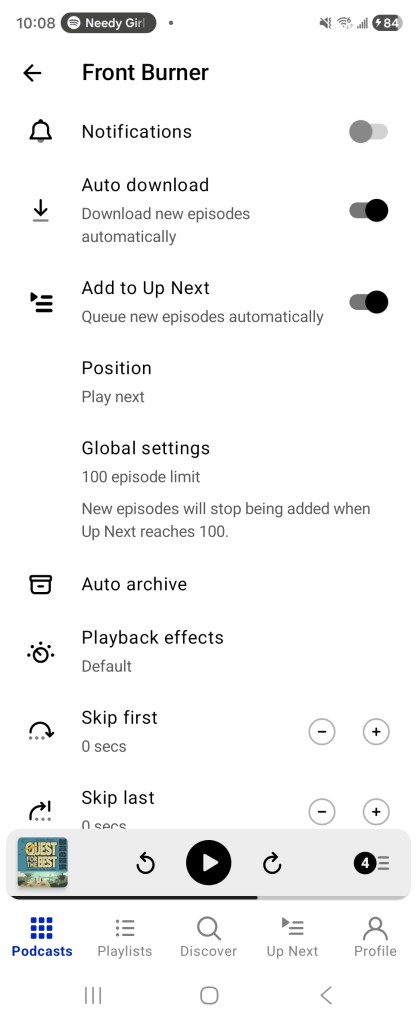
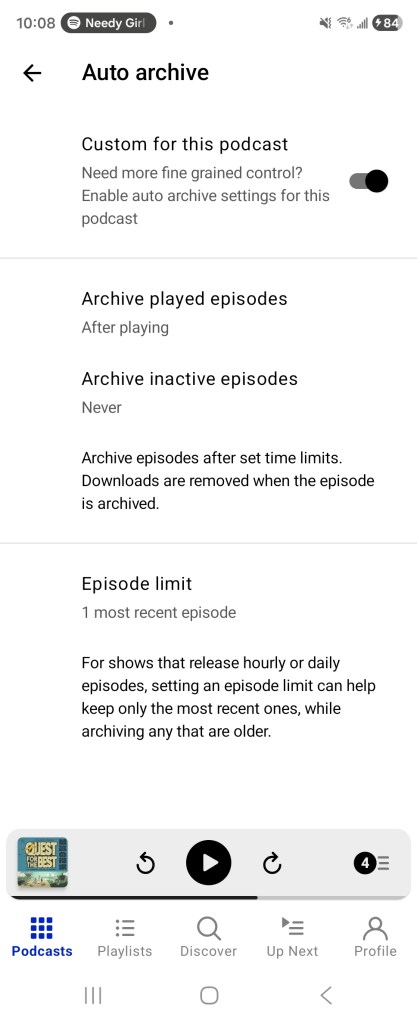
I wouldn’t recommend setting this up right away. This is a triage feature for when you’ve got dozens of podcasts. But for a sicko like me, it’s a lifesaver.
Thanks for reading all this. I may add/delete parts of this based on feedback.
Enjoy the app 💖

Leave a comment