
Readwise is a computer program that runs in the cloud that accomplishes a few interesting things with text. It costs money. I’ve been trying to this stuff with text for years with a series of different apps, but Readwise does this text stuff so well and charges a fee for their good work, so I pay them. It costs $10 a month and I use it more than any streaming TV service. But because it costs money, I feel like I need to justify it in my life. So that’s mostly what this blog post is about. Here are my thoughts, three months in.
Main Features
Readwise is one service that you use by downloading two apps: Readwise and Readwise Reader. Reader is where you read new things that you’ve chosen to read in advance. Readwise is the app that reminds you about stuff you’ve read in the past. They interconnect but work separately, and they both have a workflow and a goal attached.
The goal of Reader is to be the place all text you read on the internet either comes from or goes to, so that eventually you’re consuming the web through it. It does this by being an RSS Reader, a Newsletter Reader, and a Read-it-Later app all in one place.
Before Readwise, I did actually use three apps for this purpose. I was using Reeder (which connected to a third-party app called Feedly) for RSS. Because Feedly’s free app limited you to 100 feeds, I couldn’t actually get everything I read on the web in there (but only barely. My Readwise RSS list is 150 or so). For Newsletters, I was using Substack’s own app. And for Read-it-later stuff, I was using Pocket. Pocket’s free version had its own limitations, mostly in search and history. If I’d paid for Feedly and Pocket together, it would be more than Readwise, and actually offer me fewer overall features.
Highlights
Readwise is there to remember text you’ve highlighted, keep that text, and remind you about it later. It’s not very useful if you don’t ever want to highlight or remember text.
Making New Highlights
Importing using the Readwise Camera
If I’m reading a paper book and want to make a highlight, I can run a physical highlighter over the page. I can see that I’ve done that, but if I put that book away on a shelf, I might never see that highlight ever again. With Readwise, I can point my phone at the page and take a photo. Readwise will analyze the text and give me a cursor, so that I can highlight a particular section. It’ll ask me what book it was, and almost every book I’ve tried is already in there. Later, it’ll remind me about that highlight in my Daily Review.
Importing with Libby
Most of the books I read are from the library, and most of them are ebooks I read in the Libby app. Highlighting a passage in the libby app will sync the text back to Readwise.
Importing using Kobo
In the many years I’ve owned Kobo devices, I’ve never consistently been able to keep highlights saved. Readwise syncs with a fairly new app I’ve found (thanks to the excellent Readwise import page) called October. By running that script, I can grab any highlight I’ve made on any document in my Kobo, and that stuff gets added to Readwise. That’s a decade-long annoyance solved.
Other Importing methods
Readwise has a web clipper, so if you’re just reading an article in a browser, you can highlight any text and it’ll get saved. It has import options for Kindles, Instapaper, Pocket, Goodreads, and more. If there’s been a popular text reading app in the last decade, it can probably work with it.
Most of my highlights, though, are made in the Readwise Reader app.
Readwise Reader
Readwise Reader is the best RSS reader I’ve ever used. It also might be the most complicated, so let me be clear here: if you regularly read fewer than 100 websites, there are better and easier options out there. If you’ve ever organized your bookmarks by frequency, however, this app is probably up your alley.
It’s also pretty good about scooping up your RSS feeds from all the usual methods, and it’s mostly great at adding new ones. It will even suggest new sites based on articles you’ve saved to your library.
The app is organized by “Library”, which is where you save items to read later, the “Feed,” where all new articles appear, and “Views” which is where you organize feeds with a far-too-complicated query system that took me way too long to figure out.
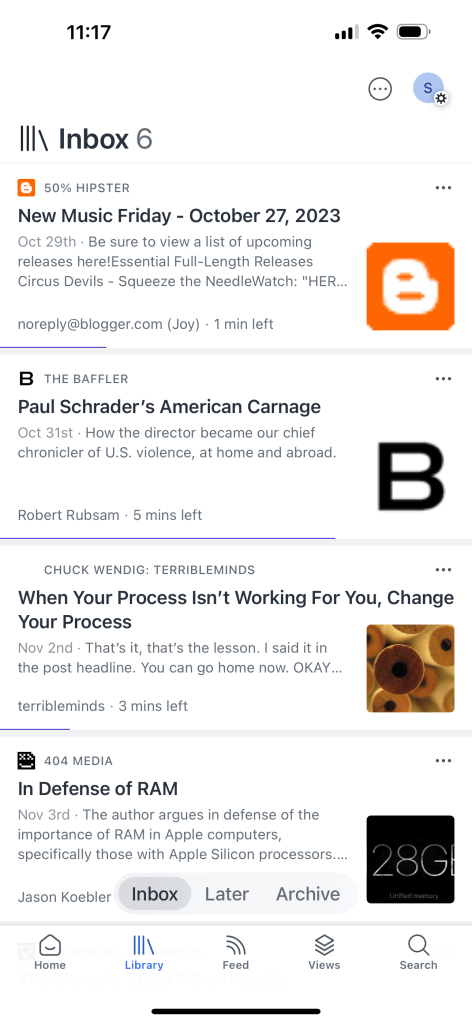
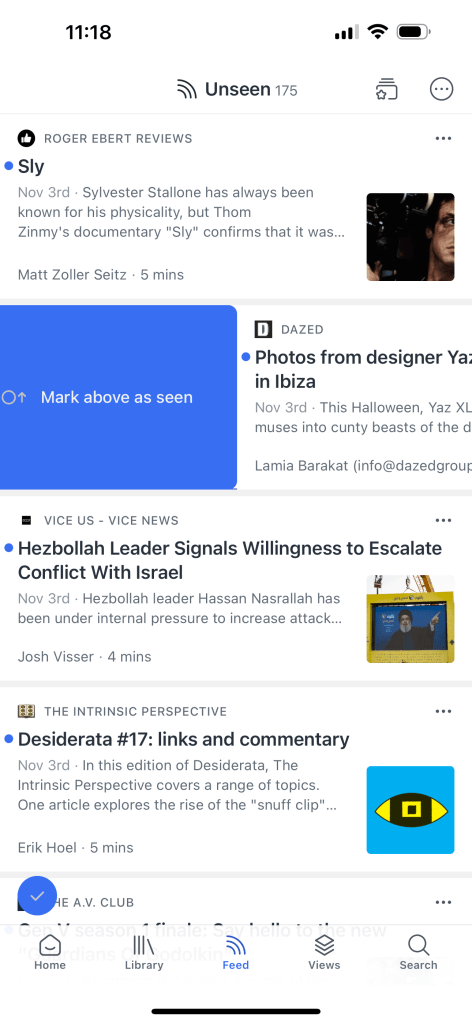
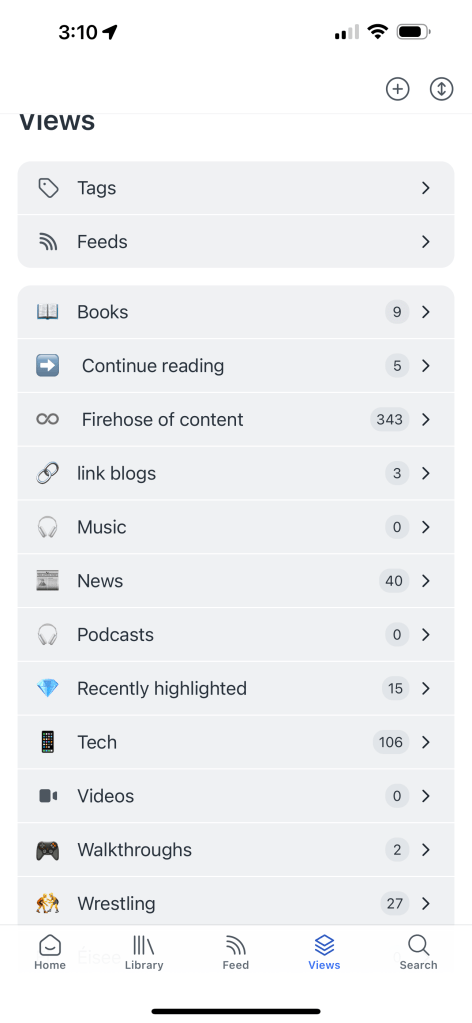
Here’s how I use this.
- I start in views. I usually hit up “link blogs” and “news” first, then “tech” and “wrestling.” that usually takes a few minutes.
- If there’s anything interesting, I’ll swipe left on the article to send it to my “library inbox.” I’ll usually read those, highlight anything interesting, and archive.
- Then, I’ll go to the “feed” page and scroll until I’m done with it, similarly swiping to move anything interesting to the library. If I haven’t emptied it out, I’ll swipe left to “mark above as seen”, so the last one in the list will be the first when I next open the app.
- In the case of the “books” and “walkthroughs” views, those are ePub and text files used for reference. I mostly use them to keep my spot in a very long document.
All of these swipes, lists, and workflows are configurable in a near-endlessly-customizable settings menu.
Readwise and Daily Review
The main function of the Readwise app is to provide a daily review of your highlights. This helps you remember what you’ve highlighted and reminds you of things you’ve liked. It can, on occasion, bring you to tears remembering something moving. This is really nice.
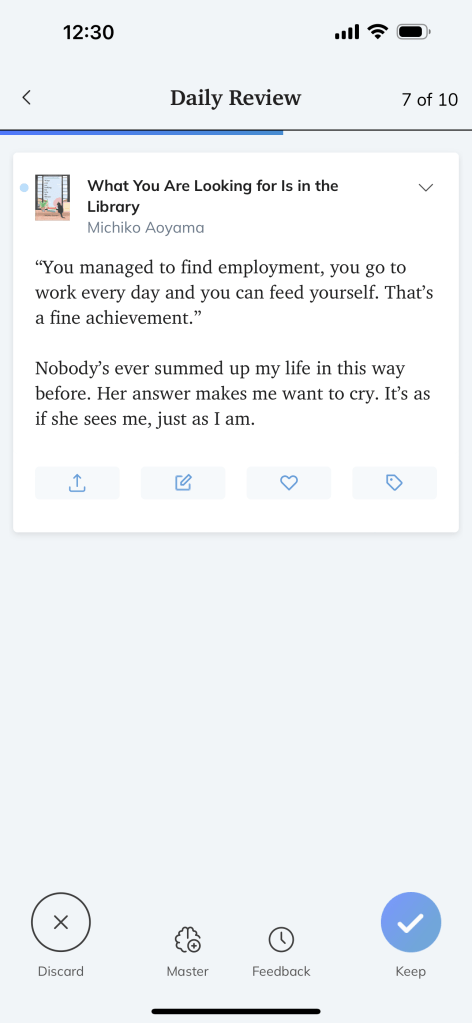
I have not utilized too much the “Master” function, which is Readwise’s version of flash card memorization. You can set up your own quizzes for things you’d like to remember. If I was in school, I would use this.
Errors
There’s a lot happening in this app, and it doesn’t always nail it.
- This is probably my biggest gripe: Readwise works with Libby, and Readwise works with Kobo. But if I sync a library book to my kobo, those highlights will often not sync back to Readwise. Maybe two things is too many things.
- Sometimes when you put a URL into the RSS reader to subscribe, it just won’t, because Readwise can’t figure out what the RSS feed is. I’d appreciate an error message here instead of what it does, which is create a feed with no entries.
- Sometimes apps stop syncing. Usually, going into the import page and unsyncing/resycning the apps solves the problem.
- Sometimes an RSS article will just look like this:
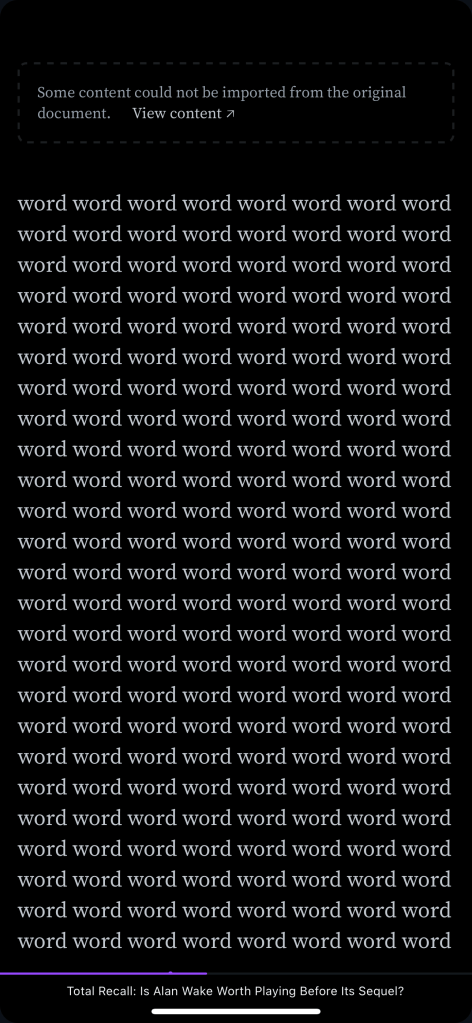
Overall, however, these errors are rare and easily problem-solved, and both apps are stable. Sometimes it’s not the RSS reader’s fault that RSS is a little janky.
Conclusion
I’m not really selling this to you, dear reader, but me in the future when the time comes to pay the bill again. If you’re using this app as often in a year as you are now, three months into it, pay the money.
However, if you are actually shopping for an app like this and wonder if the money is worth it, ask yourself if you’re straining against the constraints of whatever setup you currently have. I’ll ask myself that on occasion, too.


Leave a reply to Sawyer’s Reading Log, 2025 – K Sawyer Paul Cancel reply